
-
IT Support
-
Administration
-
Nurse
-
Doctor
-
Common Q&A
- 25/2/2026 News Updating
- How to manager Bupa Medical Certificate
- Common Q&A
- 12/2/2026 News Update
- 6/2/2026 News Update
- 5/2/2026 News Update(under development)
- Practice Operational Notice
- 26/2/2026 Incident Learning Case_Unplanned Doctor Change
- 26/2/2026 Incident Learning Case_Breach of Patient Privacy
- 26/2/2026 Incident Learning Case_Incoming Hospital Document Filed Without Action
- 26/2/2026 Incident Learning Case_Front Desk Provided Medication Assurance
- 26/2/2026 Recording Payments in Appointment Book
- How to merge scanned pages into one PDF document?
- What’s Medicare, what’s concession, what’s Pension card, what’s Health Care Card?
- What if I need to give a task to doctor? Think before handover(under development)
- Why do we need IHI?
- How to access the Best Practice learning materials?
- Patient looking for serology tests for placement?
- Show Remaining Articles (3) Collapse Articles
-
Clinical Resources
-
- 电话政策
- Spill Management Protocol
- Social Media Policy 2025
- Second Opinion and Alternative Clinical Advice Policy
- Records Management Policy
- Private and Health Information Policy 2025
- Personally Controlled Electronic Health Record Policy
- My Health Record Policy
- Medical Emergency Policy
- AIMHealth Medlbourne Central Medical Centre Policy and Procedure Manual 2025
- Infection Control Policy
- Home and Other Visits
- Follow up of Test Policy
- Ethics and Values
- Ethical Dilemmas Policy
- Email Use Policy 2025
- Cultural Safety Policy
- Complaints Management Policy
- Cold Chain and Vaccine Management Policy and Procedure Manual 2025
- Ceasing Patient Care Policy
- Blood and Body-Substance Exposure Protocol
- Anti-discrimination Policy
- Management of High-risk Results Outside of Normal Opening Hours Policy
- After-hours Service
- How to Check “Doctor attention required” list on Health Engine
- Medical Record Request Policy and Procedure
- Show Remaining Articles (11) Collapse Articles
-
-
Clinic Overview
-
Templates & Forms
-
- General Consent Form
- MyMedicare Registration Form
- Refusal of Treatment against Medical Advice
- Skin Lesion Removal Consent Form
- Shave Biopsy Consent Form
- Punch Biopsy Consent Form
- Presence of a Third Party Patient Consent Form
- IUD Removal Consent Form
- IUD Insertion Consent Form
- Iron Infusion Consent Form
- Implanon Removal Consent Form
- Implanon Insertion Consent Form
- Cryotherapy Consent Form
- Implanon Insertion Consent
-
Step 0: Contact IT to get VPN and Windows account info. The VPN config file is also sent via email.
Step 1: Download VPN software( Windows or iOS) via https://www.draytek.com/products/smart-vpn-client/
Step 2: Start Smart VPN App.
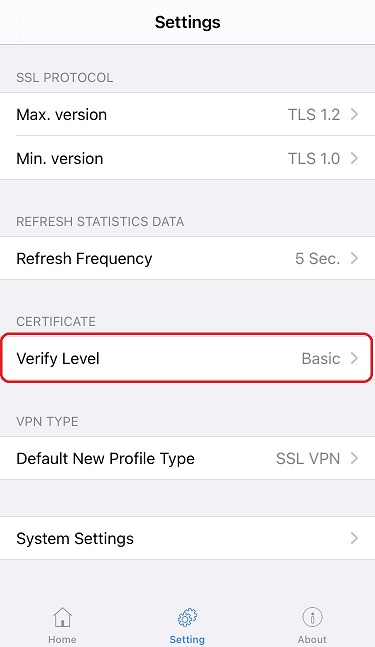
Step 3: Go to Settings >> Certificate, select “Basic” for Verify Level
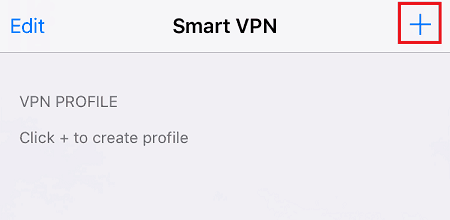
Step 4: Go back to 主页, tap + on the top-right corner to add a VPN profile.
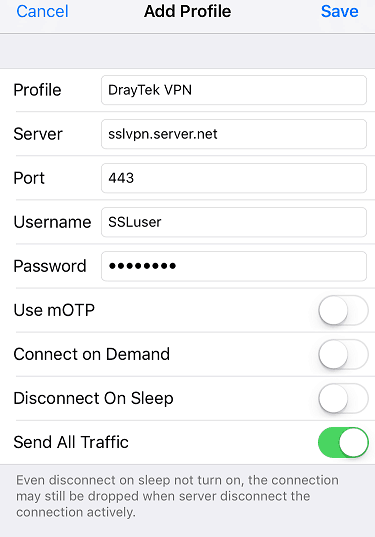
Step 5: Configure the profile as follows
Enter the IP address(165.228.95.100) of the router for Server
Type Username and Password as what was configured on the router(see email from IT)
Tap Save
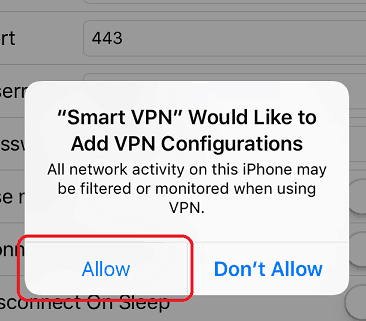
Step 6: Allow Smart VPN to add VPN confirmation to the device.
Step 7: At 主页, tap the VPN profile we just created
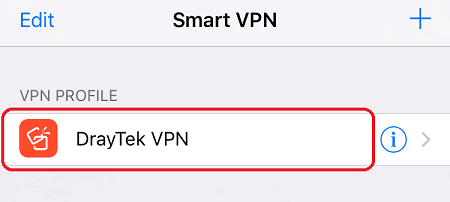
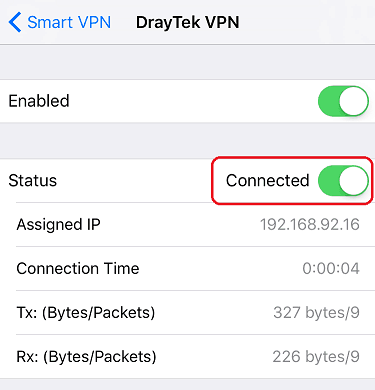
Step 8: Switch Status to “Connected” to establish the SSL VPN. When the VPN established, we can see the tunnel information.
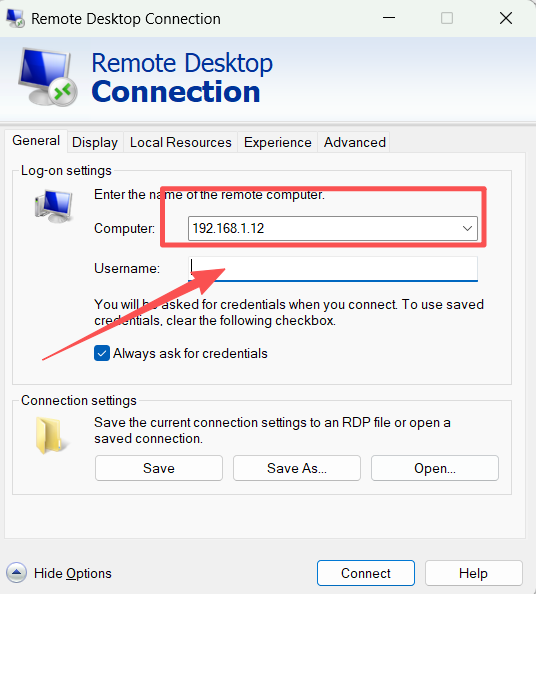
Step 9: Start the Remote Desktop program and input BP IP and windows user name. You can install “Windows App”(Previously Remote Desktop) from AppStore.
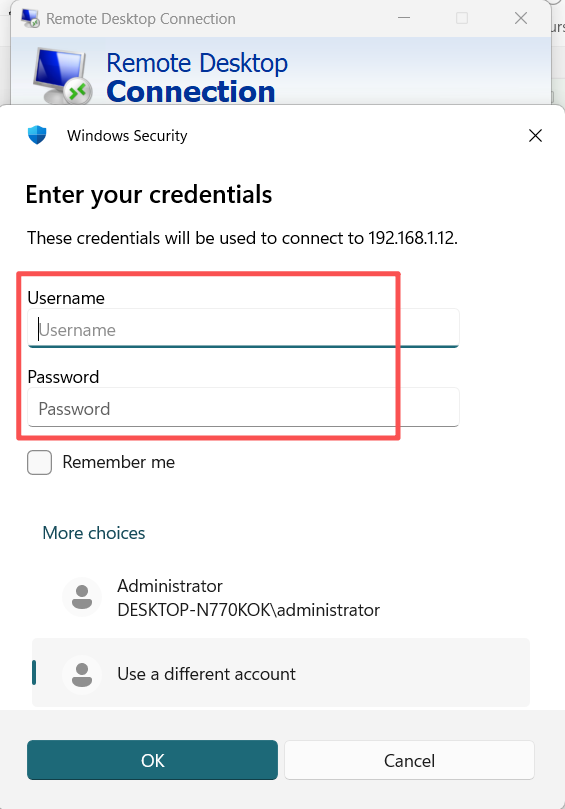
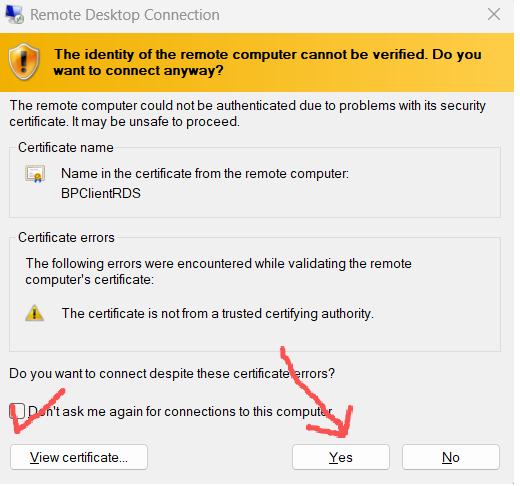
Step 10: Confirm the alert message, and the Remote Desktop Session will start.
 Chinese
  English